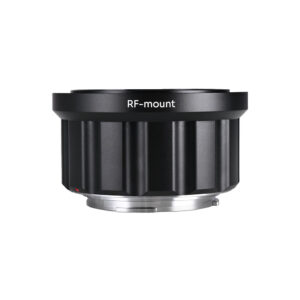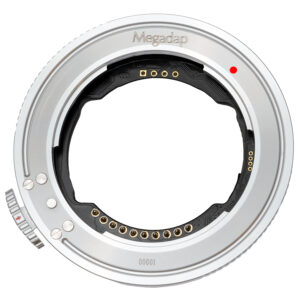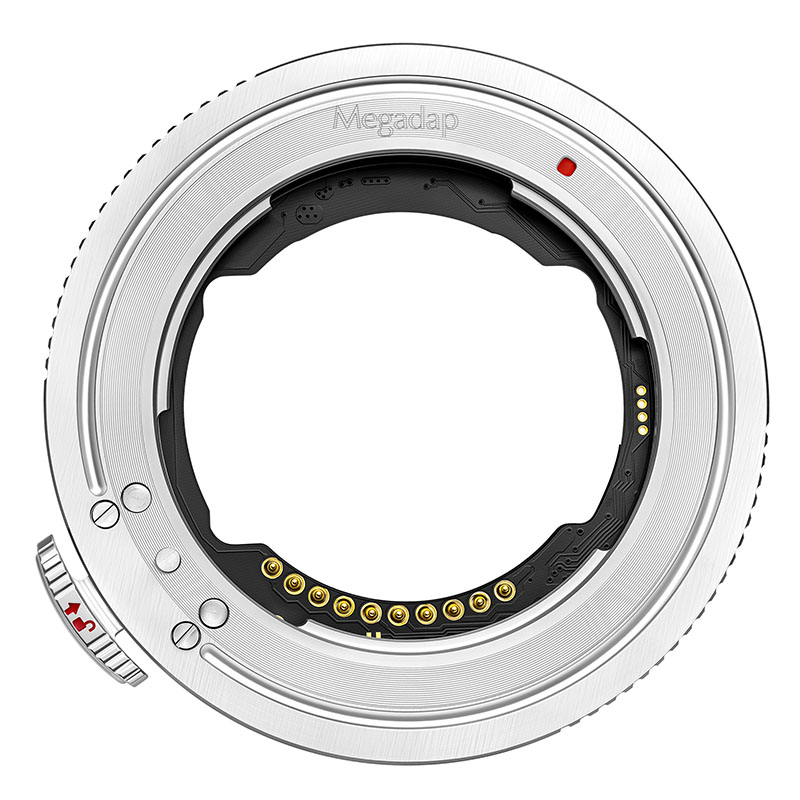
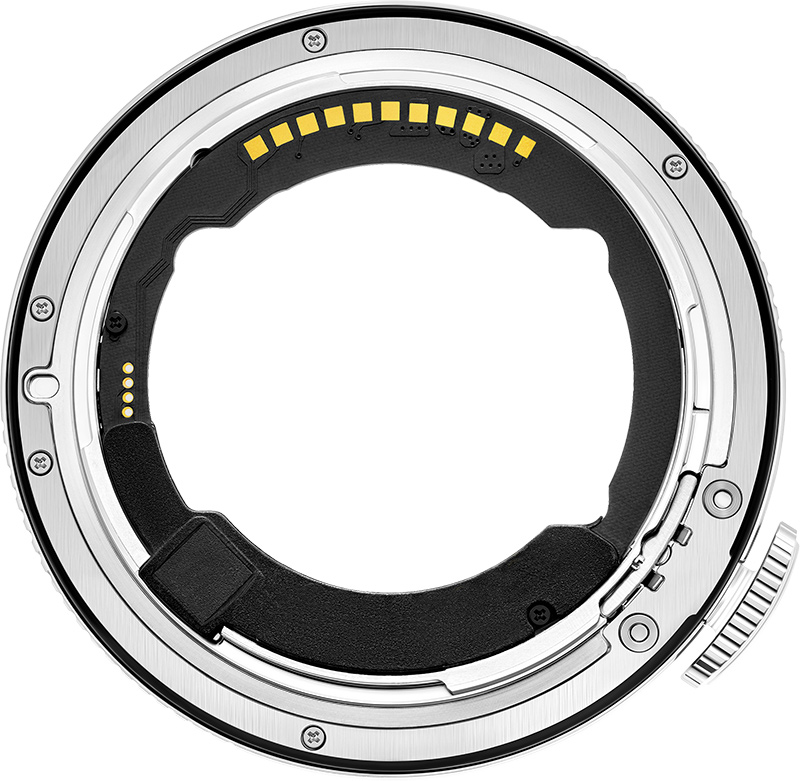
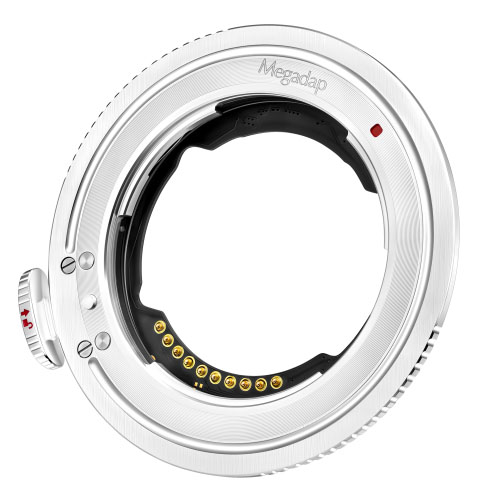
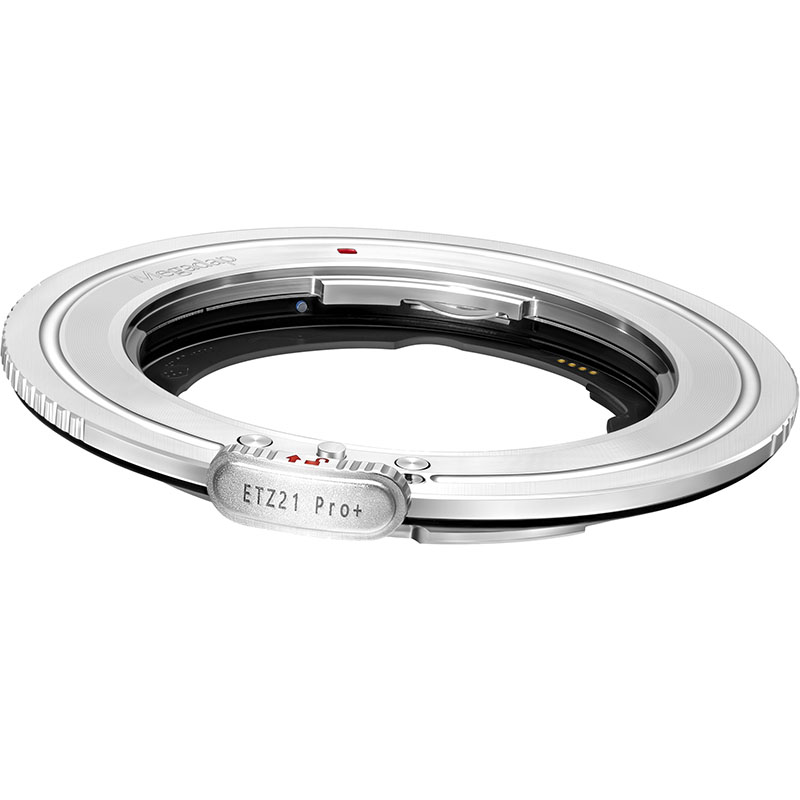
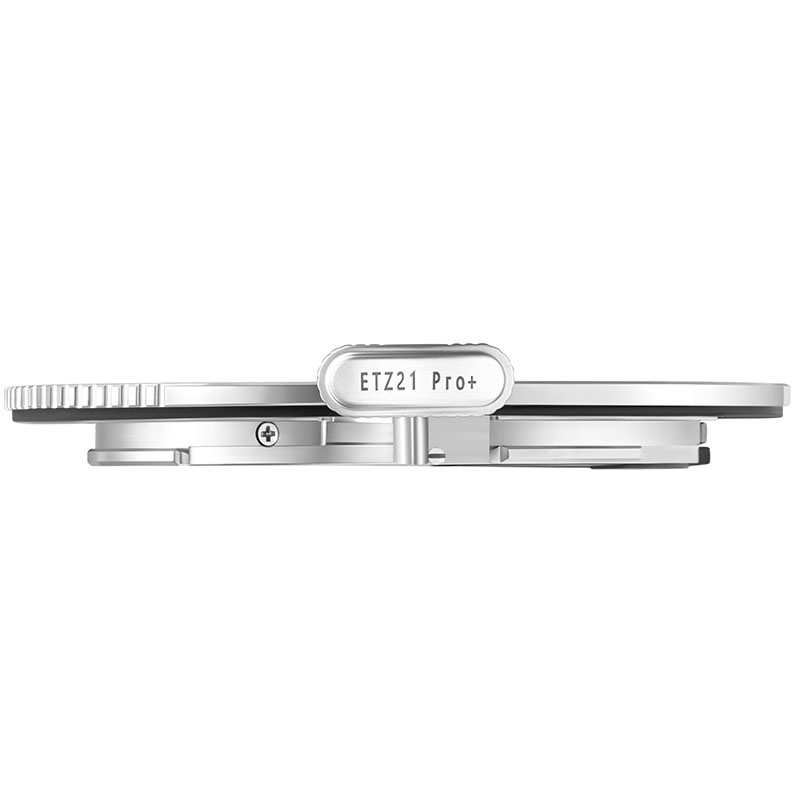
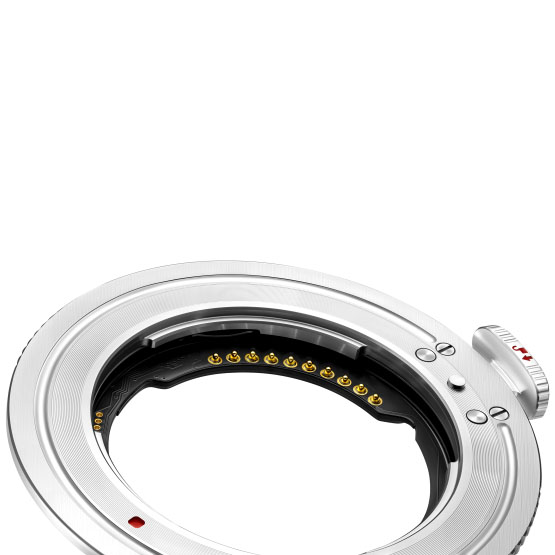
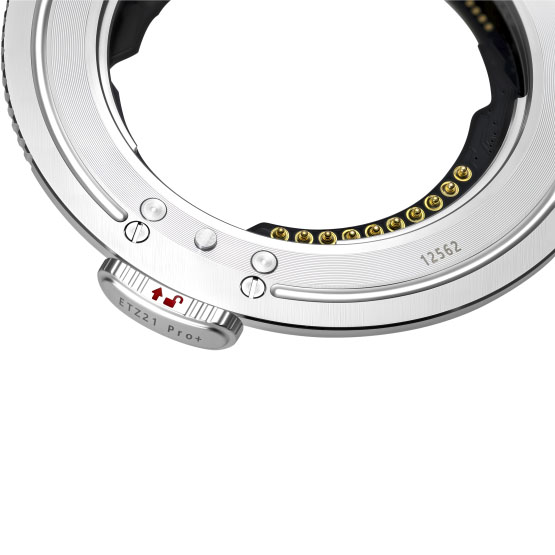

Description


Firmware Update Instructions
Update Adapter Ring Firmware
- 1. Download the latest ETZ21 Pro+ firmware from the Magadap website.
- Unzip the downloaded .ZIP file on your computer to get the .bin format firmware.
- Use a memory card slot or card reader to copy the .bin format firmware to the root directory of the memory card in the camera.
*Note: Be sure to copy the firmware to the root directory of the memory card.
(If the new firmware is placed in a folder under the root directory, the camera will not recognize it.) - Insert the memory card into the camera, install the adapter ring and lens together to the camera, and then turn on the camera.
- Select [Setup menu] > [Firmware version] and follow the on-screen instructions to perform the firmware update. When the screen prompts that the update is complete, turn the camera off.
- Turn on the camera and confirm that the firmware has been updated to the new version.
View adapter ring firmware
- Install the adapter ring and E-mount electronic lens onto the camera and turn
on the camera. - Press the MENU button on the camera and select [Settings Menu] > [Firmware Version] to display the firmware version of the camera and lens.
(*Note: The lens version here is the adapter firmware version)